

The short answer
If admin.google.com keeps bouncing you back to the “Choose an account” screen, or you keep hitting “Sign in with an administrator account,” it is almost never a browser bug. In the overwhelming majority of cases it comes down to one of two things:
- You’re signing in with a personal Gmail address (the account that paid for Google Workspace (formerly G Suite)) instead of the actual super-admin account on your domain (e.g.
you@yourdomain.com). - Your domain hasn’t been verified yet — which happens constantly on brand-new free trials. Until the domain is verified, Google won’t let the admin in and won’t load the console, so every link loops.
Fix it by signing into admin.google.com with the domain admin account (not the Gmail), and completing domain verification via a DNS record. The full walkthrough is below.
How we ran into this (a real story)
We hit this one live, on a screen-share, while helping a client set up their brand-new Google Workspace. Every single attempt to reach admin.google.com dead-ended on the same screen:
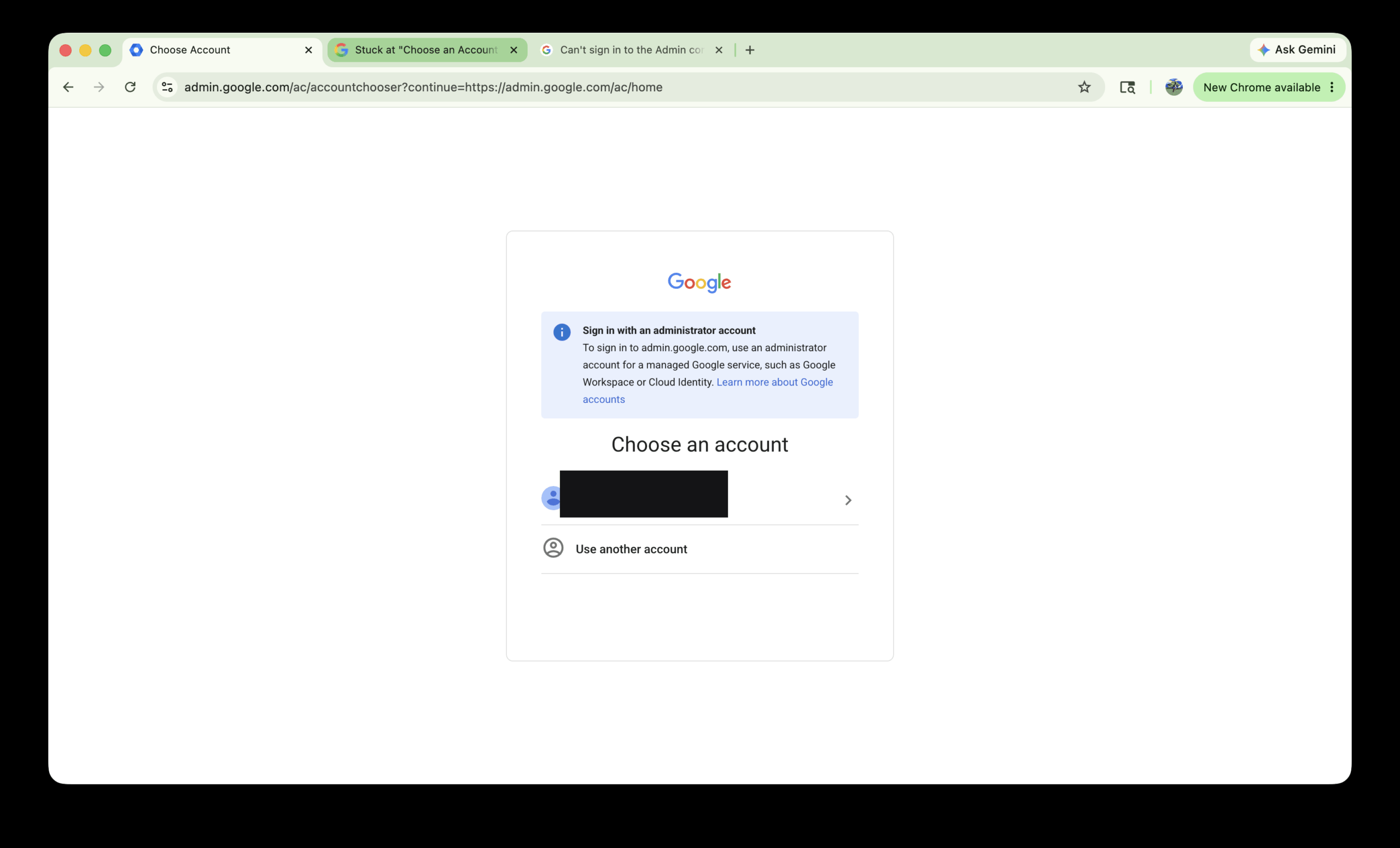
Click the account → the page just refreshes → back to “Choose an account.” Over and over. We tried everything you’d expect: a different computer, a clean browser with zero extensions, incognito, signing out of every other Google session. Nothing worked. The client was adamant (and correct) that they had paid for the subscription — they even had the billing email to prove it:
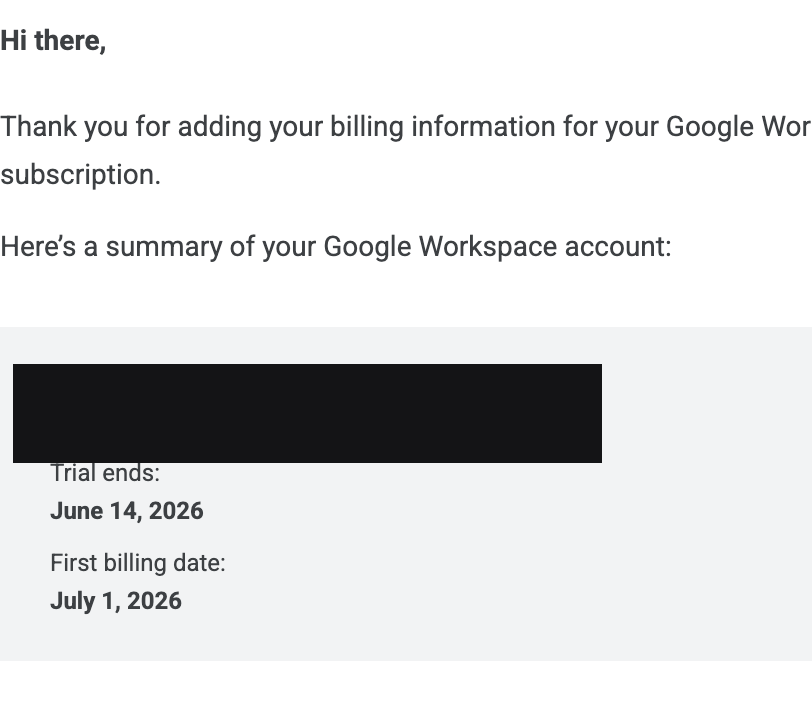
So the account was real, it was paid, and it was on an active free trial. And yet the admin console refused to load. If you’ve been there, you know exactly how maddening it is — and a quick search shows you’re far from alone. There are dozens of threads full of people stuck in the identical loop with no working answer posted.
What’s actually happening
The breakthrough came from two screens that finally told us the truth — and both came from outside the looping browser flow.
First, the Google Admin mobile app (which uses native sign-in, not the web redirect chain) gave us a straight answer:
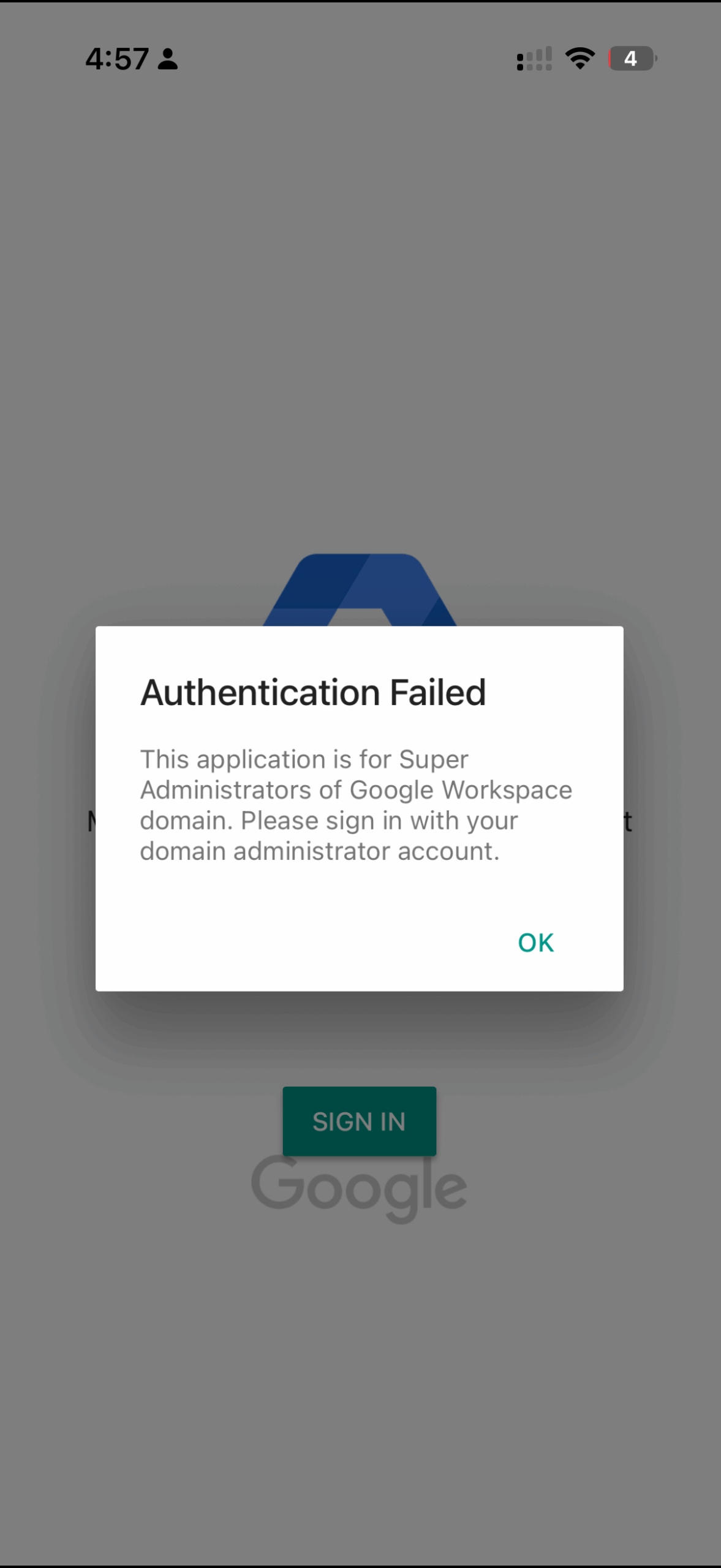
“This application is for Super Administrators of Google Workspace domain. Please sign in with your domain administrator account.”
Translation: the Gmail address that bought the subscription was the billing owner — not the super administrator. The actual admin was an account on the domain itself. That’s why every web link bounced to “sign in with an administrator account,” trapping the browser in an endless login loop: Google didn’t see the Gmail as an admin, because it isn’t one.
Then, signing in with the real domain admin account surfaced the second half of the problem:
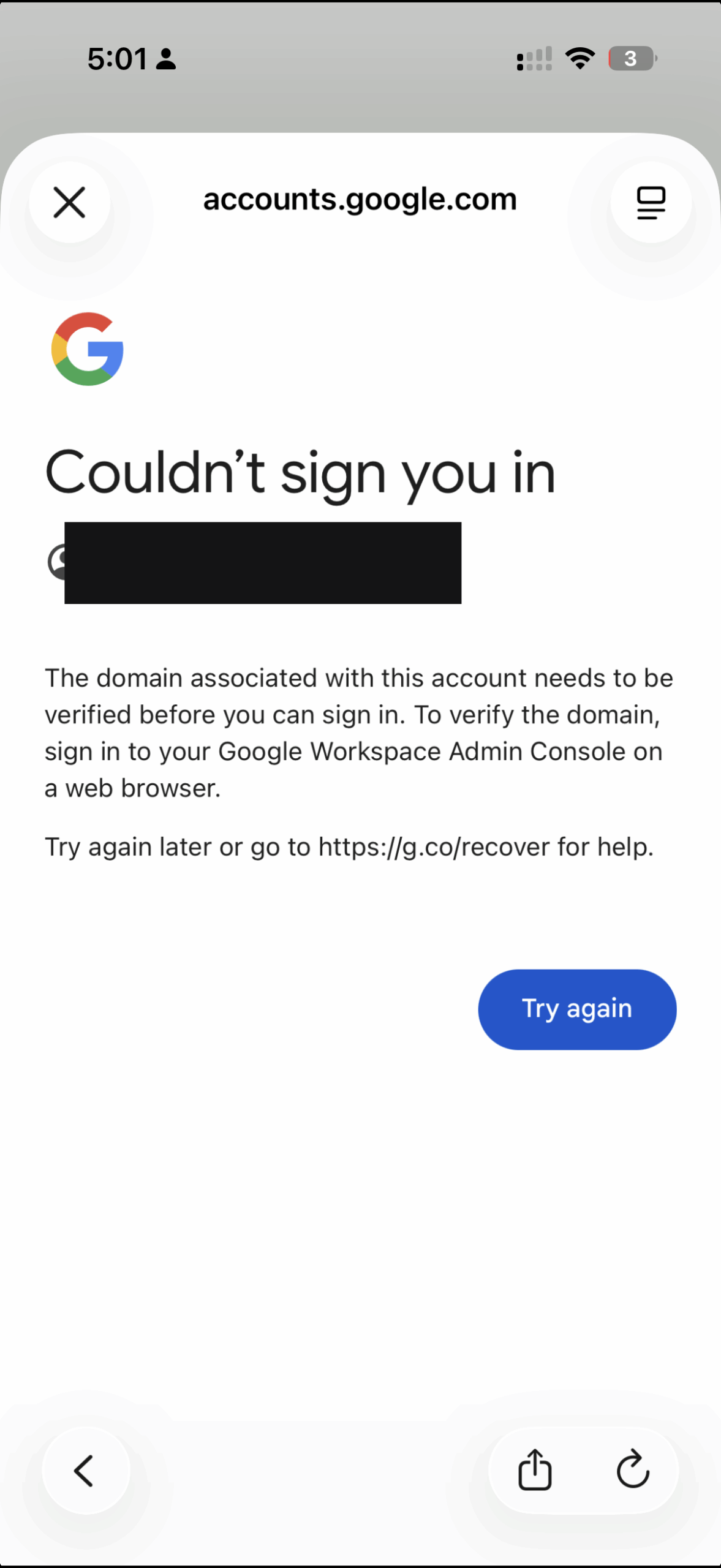
“Couldn’t sign you in. The domain associated with this account needs to be verified before you can sign in. To verify the domain, sign in to your Google Workspace Admin Console on a web browser.”
There it was. The entire loop traced back to one unverified domain. Google sets up a catch-22 on fresh trials: it won’t let the admin in until the domain is verified, but the self-serve flow keeps dumping you back at a login or plan-selection screen instead of the verification wizard. Once we knew that, the fix was straightforward.
How to fix the Google Workspace admin console redirect loop
Step 1 — Sign in with the domain admin account, not the Gmail
Go to admin.google.com in a desktop browser. If you’ve been clicking a personal @gmail.com address, that’s the loop. Choose “Use another account” and sign in with the @yourdomain.com super-admin account that was created when the Workspace was first set up. A managed domain account does not get the “sign in with an administrator account” bounce that a Gmail does.
Don’t know the domain admin address? It’s the first account created during signup. If no one remembers it, skip to “Still stuck?” below for the domain-ownership recovery route.
Step 2 — Let it route you to the “Verify your domain” wizard
If the domain isn’t verified yet, signing in as the admin won’t drop you in the looping console — it routes you to a “Verify your domain” setup screen instead. That’s the screen you actually need, and it’s the one the personal Gmail could never reach.
Step 3 — Add the verification record to your DNS
The wizard gives you a TXT record (something like google-site-verification=XXXXXXXX). This is how you verify your domain in Google Workspace. Add it to your domain’s DNS:
- Type: TXT
- Host/Name: @ (the root domain)
- Value: the exact string Google gives you
Save it, then give DNS a few minutes to propagate.
Step 4 — Click “Verify”
Back in the wizard, click Verify. The moment the domain verifies, the loop is gone for good. The admin account gets full super-admin access and the console loads normally everywhere — web and mobile app.
If the basics genuinely don’t apply
Before you assume it’s the domain/account issue, rule out the simple stuff (these do cause the same “Choose an account” loop in a smaller number of cases):
- Multiple Google sessions in one browser. Sign out of all Google accounts, then sign in with only the admin account.
- Third-party cookies blocked. The admin console’s sign-in flow needs them. Allow cookies for
[*.]google.com(note: incognito blocks third-party cookies by default, so it can make this specific issue worse). - A browser extension eating the OAuth redirect. Test in a clean browser profile.
- A billing suspension. If a paid (non-trial) subscription lapsed, the console can loop silently until the invoice is paid.
Still stuck? The guaranteed way back in
If you can’t reach the verification wizard and nobody knows the domain admin address, use Google’s account-recovery path. It works because domain ownership beats everything: you prove you control the domain by adding a DNS record, and Google restores or identifies super-admin access from their side.
- Start at Google’s “Can’t sign in to the Admin console” help page and follow it to the login-issues form.
- You can also message @AskWorkspace on X (Twitter) — Google’s support handle that works even when you can’t reach the console.
- The mobile error screen itself points to
g.co/recoverfor guided recovery.
Frequently asked questions
Why does admin.google.com keep going back to “Choose an account”?
Because the account you’re selecting isn’t an administrator of a managed Google Workspace domain — most often it’s a personal Gmail that paid for the subscription, or a domain that hasn’t been verified yet. The console can’t load, so it bounces you back to the chooser.
What does “Sign in with an administrator account” mean?
It means the account you’re using has no admin console to show. Use the @yourdomain.com super-admin account created during Workspace signup, not a personal @gmail.com address.
I paid for Google Workspace — why am I not the admin?
The account that pays for Workspace (the billing owner) and the super administrator can be two different accounts. When you sign up using an existing personal Gmail, that Gmail is often just the billing/recovery contact, while the real admin is a new account on your domain.
Does incognito mode fix the admin console loop?
Sometimes, when the cause is conflicting sessions or extensions. But incognito blocks third-party cookies by default, which the admin sign-in needs — so for cookie- or verification-related loops, incognito can actually make it worse.
How do I fix “the domain associated with this account needs to be verified”?
Sign into admin.google.com as the domain admin on a desktop browser, open the “Verify your domain” wizard, add the TXT record it gives you to your DNS, and click Verify. Once verified, you can sign in everywhere.
How long does domain verification take?
The DNS record itself usually propagates within a few minutes, though it can take up to a few hours. Click Verify in the wizard once it’s live.
Why can’t I log into my administrator account?
Almost always because you’re signing in with a personal Gmail that isn’t an administrator, or because your domain hasn’t been verified yet. Sign in with your @yourdomain.com super-admin account at admin.google.com, and complete domain verification if you’re prompted.
Why is the Google Admin console stuck on “Choose an account”?
Because the account you keep selecting isn’t recognized as an administrator of a verified Google Workspace domain. The console can’t load, so it bounces you back to the chooser in a login loop. Use the domain admin account (not a personal Gmail) and verify the domain to break the loop.
Is the Google Admin console down?
A redirect loop almost never means the Admin console is down. It’s nearly always a wrong-account or unverified-domain issue on your end. You can check the Google Workspace Status Dashboard to rule out a real outage, but the fix here is signing in with the domain admin account and verifying your domain.
How do I get access to the Google Admin console?
Go to admin.google.com and sign in with your domain’s super-admin account (you@yourdomain.com), not a personal @gmail.com. If you don’t know which account is the admin, recover it by proving domain ownership through Google’s Admin console login-issues form.
Does the redirect loop happen in the Google Admin app on Android or iPhone?
Yes. The same wrong-account problem appears in the Google Admin mobile app as “This application is for Super Administrators.” That’s actually a helpful diagnostic: if the app rejects your Gmail, it confirms that Gmail isn’t the super admin, and the real admin is an account on your domain.
The takeaway
The Google Workspace admin console redirect loop looks like a bug, but it’s almost always a wrong-account or unverified-domain problem wearing a bug’s clothing. Sign in with the domain admin, verify the domain with a single DNS record, and the loop disappears.
If you’d rather not wrestle with DNS records and Workspace setup yourself, that’s literally what we do all day. As a web design agency, we also handle hosting and Google Workspace setup. Get in touch with Snazzy Solutions and we’ll get you sorted.