

WordPress 7.0 was the biggest change to WordPress in years: built-in AI connections, a redesigned dashboard, and a new way to see what changed between revisions. Three months later, WordPress 7.1 added responsive styling and faster image uploads. Then in September came a critical security fix that attackers started testing the same day it shipped. If you run a business site on WordPress, here is what actually changed, what got pulled at the last minute, and how to update without breaking anything.
We maintain WordPress sites for small businesses around Raleigh and beyond, so this is written by the people who actually install these updates. Every date and feature below links back to the official WordPress announcement or a named security source.
What is the latest version of WordPress?
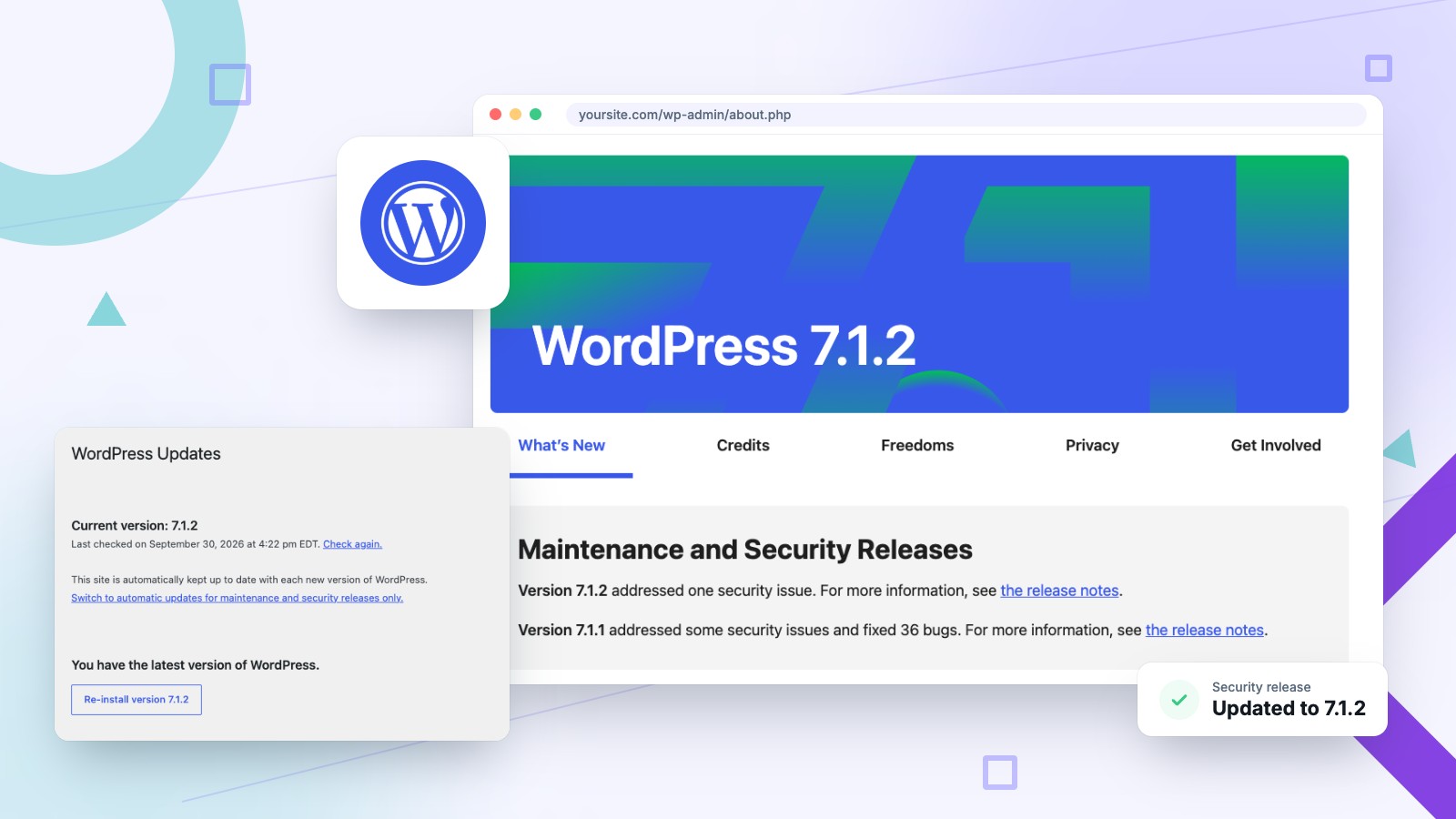
The latest version of WordPress is 7.1.2, released September 22, 2026. It is a security release that fixes a critical flaw, so every site should be on it or on its branch’s patched version.
Here is how the WordPress 7 releases have landed so far:
| Version | Released | What it was |
|---|---|---|
| WordPress 7.0 “Armstrong” | May 20, 2026 | Major release: AI Client and Connectors, new admin design, visual revisions, new blocks |
| WordPress 7.1 “Mary Lou” | August 19, 2026 | Major release: responsive styling, media editor, in-browser image processing, AVIF and HEIC support |
| WordPress 7.1.1 | September 17, 2026 | Maintenance and security release: 36 bug fixes and 11 security fixes |
| WordPress 7.1.2 | September 22, 2026 | Security release: fixes CVE-2026-87902, rated critical |
Sources: the WordPress 7.0 announcement, the WordPress 7.1 announcement, the 7.1.1 release notes and the 7.1.2 release notes. If your site is still on the 7.0 branch, the patched version is 7.0.6; on 6.9 it is 6.9.9, and on 6.8 it is 6.8.10, according to The Hacker News.
When was WordPress 7.0 released?
WordPress 7.0, code-named “Armstrong,” was released on May 20, 2026. It was originally scheduled for April 9 and was pushed back to give the team more time on stability.
The extra time did not save every feature. The one promoted hardest, real-time collaboration, was cut before launch, which we cover below. The 7.0 release page on make.wordpress.org has the full schedule if you want the history.
What’s new in WordPress 7.0?
WordPress 7.0 added a built-in way to connect AI providers, a redesigned admin dashboard, visual revision history, new blocks, and controls to show or hide blocks by device.
Here is each change, and what it means if you own the site rather than build it.
Built-in AI connections (the AI Client and Connectors)
WordPress now has an AI Client in core that lets it talk to generative AI models. You manage it from a new Settings > Connectors screen, which ships with presets for Anthropic, Google and OpenAI, according to the WordPress 7.0 Field Guide. You add your own API key, and plugins can then use that one connection instead of each asking for its own.
What it means for you: nothing AI-related happens until someone connects a provider, and you pay that provider directly. The practical upside is one place to manage keys, so an SEO plugin and a chatbot plugin can share a single connection you control.
A new-look dashboard and a command palette
The admin area got a new “Modern” color scheme and cleaner styling across the dashboard, the Customizer and even the multisite signup screens. The command palette, opened with Cmd+K on a Mac or Ctrl+K on Windows, lets you jump to any screen or tool by typing its name.
What it means for you: the first time you log in after the update, things will look different. Nothing moved far, but if someone on your team edits the site once a month, give them a heads-up so they do not think something broke.
Visual revisions
Revision history now shows visual markers so you can see where a page changed, instead of reading a wall of code.
What it means for you: “who changed the phone number on the Contact page?” is now a quick answer, and rolling back a bad edit takes seconds instead of a support ticket.
New blocks and per-device controls
7.0 added Breadcrumbs and Icons blocks, a lightbox slideshow for galleries, updates to the Heading block, custom CSS on individual blocks, and controls to hide or show a block on specific devices. Navigation menus can now open into overlays built from blocks and patterns, and fonts get their own management page.
What it means for you: if your site is built with the WordPress block editor, you can now do more without a developer, like hiding a big image on phones. If your site runs on Elementor or Divi, most of these features live in a part of WordPress you do not use, so do not expect your pages to change.
What happened to real-time collaboration in WordPress 7.0?
Real-time collaboration was removed from WordPress 7.0 twelve days before launch. It is not in 7.0 or 7.1, and the team is still testing a new approach outside of core.
Many articles about WordPress 7.0 still list Google Docs-style co-editing as a headline feature, and they are wrong. On May 8, 2026, the core team announced its removal, citing “concerns around surface area, race conditions, server load, memory efficiency, and recurring bugs found through fuzz testing.” In September they shared a new server-aware approach that is still being tested.
We think pulling it was the right call. A feature that can put extra load on your server is not something you want to find out about on a busy Monday. If you read a WordPress 7 guide that promises live co-editing, treat the rest of it with the same suspicion.
What’s new in WordPress 7.1?
WordPress 7.1, released August 19, 2026, added responsive styling, hover and focus styles for buttons, a new media editor, faster in-browser image processing, and support for AVIF and HEIC images.
From the official 7.1 announcement, the changes that matter most for business sites:
- Responsive styling. Style how a block looks on phones, tablets and desktops without writing CSS.
- Button states. Set how a button looks on hover, focus and click directly in the editor.
- A proper media editor. Cropping, flipping, rotation and image details in one window.
- Image processing in the browser. Compression, resizing and thumbnails now run in your browser instead of on your server, which takes load off cheaper hosting.
- Modern image formats. Native support for AVIF, HEIC (the format iPhones shoot in) and HDR images.
- Better Notes. Leave formatted notes on content and @mention a teammate.
- Two new blocks. Tabs, for organizing content into panels, and Playlist, for audio.
For most small businesses, HEIC support is the change you will notice first, because uploading photos straight from a phone to a blog post has been a small headache for years.
What was the September 2026 WordPress security fix?
WordPress 7.1.2 fixed CVE-2026-87902, a critical flaw that could let an attacker run code on a site without logging in, under certain conditions. Attacks started within hours of the fix.
According to the WordPress 7.1.2 release notes, an unauthenticated attacker could make WordPress load a PHP file from outside the active theme, which can lead to remote code execution. Two things had to be true for it to work: the active theme has a top-level folder whose name starts with page-, and a usable PHP file already sits on the server. Attackers went after a file that ships with PHP’s PEAR package manager, The Next Web reported.
The fix shipped on September 22, the first attack attempts were recorded that same day, and traffic peaked the next day at more than ten times the first evening’s volume. On September 25, the U.S. Cybersecurity and Infrastructure Security Agency added the flaw to its list of known exploited vulnerabilities, per The Hacker News.
WordPress backported the fix to every branch that still gets security updates, back to 4.7, and most sites install security releases automatically. Sites with auto-updates turned off, stuck on an old PHP version, or on a host that pins versions can sit unpatched for weeks. Five days before 7.1.2, the 7.1.1 release had already closed 11 other security issues. If you have not checked your version since mid-September, check it today.
Should you update to WordPress 7.0 or 7.1?
Yes, with some prep. Install security releases right away. For the jump from WordPress 6 to 7, back up, test on a staging copy, and check your plugins first.
You are not alone if you have been putting it off. As of September 30, 2026, W3Techs reports that 63.7% of WordPress sites run version 7, which means more than a third are still on version 6 or older.
Staying on version 6 carries its own risk, because your plugins keep updating whether WordPress does or not. Here is a real example from our own work. This spring, a Rank Math SEO update started calling a function that only exists in newer versions of WordPress. On a site we manage that was still on WordPress 6.8, that update took down the site’s entire REST API and its command-line tools. The front end looked completely normal, so nobody would have noticed until backups and scheduled tasks started failing in the background. We caught it and patched around it, but that is what happens when old WordPress meets auto-updating plugins.
Since WordPress 5.6, new installs are set to auto-update major versions too, per the WordPress developer docs, unless someone changed that setting. So some sites made the jump to 7.0 on their own, with no testing at all. If yours did and everything looks fine, great, but it is worth a proper once-over.
What do you need before updating to WordPress 7?
You need PHP 7.4 or newer (PHP 8.3 is recommended), a recent backup you know you can restore, and plugins and a theme that support WordPress 7.
WordPress 7.0 dropped support for PHP 7.2 and 7.3, so WordPress will not offer the update to sites still running them. WordPress.org’s requirements page recommends PHP 8.3 or greater and MySQL 8.0 or MariaDB 10.11 or greater. Your host can tell you which versions you are on, and most let you switch PHP versions from their control panel.
Here is the order we update client sites in:
- Take a full backup, files and database, and store it somewhere other than the server. Make sure you know how to restore it before you need to.
- Make a staging copy. Most hosts have a one-click staging tool. Do the update there first.
- Check your PHP version. Move to PHP 8.3 if your plugins support it, and test on staging before switching the live site.
- Update plugins and your theme first, then WordPress itself. Plugin authors usually ship compatibility fixes before or right after a major release.
- Test what makes you money. Submit your contact form, run a test checkout if you sell online, click the phone button on mobile, and load your top five pages.
- Check the error log for new warnings, even if the site looks fine. Our Rank Math story is exactly the kind of problem that only shows up there.
- Update the live site, then repeat the money tests.
If that list sounds like a Saturday you do not want to spend, that is exactly what a WordPress maintenance plan is for. If you would rather hire it out, we compared the best WordPress maintenance services by price and what each one covers. And if an update already went sideways, our breakdown of what it costs to fix a hacked WordPress site will give you a sense of what you are dealing with.
How do you check which WordPress version you’re running?
Log in to WordPress and go to Dashboard > Updates. The top of that screen shows your current version and whether a newer one is available.
You can also find it in the “At a Glance” box on the main dashboard, or at the bottom right of most admin screens. If you do not have a login, your web designer or host can tell you in about a minute. If nobody knows who has the login, sort that out before the next security release lands.
Is WordPress still worth using in 2026?
Yes. WordPress runs about 40% of all websites, and the 7.0 and 7.1 releases show it is still moving fast. The trade-off is that it needs regular upkeep.
W3Techs puts WordPress at 40.2% of all websites and 58.7% of sites that use a known content management system. It is flexible, you own your site, and you can move it to any host. The cost of that freedom is that you, or someone you hire, are responsible for updates like the ones in this post. Closed builders handle that for you, with less control in return. If you are weighing that choice, we compared WordPress and Squarespace side by side.
WordPress 7 FAQ
Is WordPress 7.0 safe to use?
Yes, as long as it is patched. If you stay on the 7.0 branch, you need at least 7.0.6, which includes the September 2026 critical fix. Better yet, move to 7.1.2, the latest version.
Will updating to WordPress 7 break my site?
Usually not, but outdated plugins, an old PHP version or a custom theme can cause problems. That is why you test on a staging copy with a fresh backup before updating the live site.
Do I have to pay for AI to use WordPress 7?
No. The AI Client does nothing until you connect a provider like Anthropic, Google or OpenAI with your own API key. Everything else in WordPress works the same without it.
Does WordPress 7 change sites built with Elementor or Divi?
Mostly no. The new blocks and styling tools are part of the WordPress block editor, which page builders replace for page layouts. You will see the new dashboard design, and you should confirm your builder is on a version that supports WordPress 7.
Does WordPress update itself automatically?
Security and minor releases install automatically on most sites. Since WordPress 5.6, new installs also auto-update to major versions unless that setting was changed, so check which one your site uses.
The short version
WordPress 7.0 brought AI connections, a new dashboard and visual revisions. Real-time collaboration was pulled before launch. WordPress 7.1 added responsive styling and easier image handling. WordPress 7.1.2 fixed a critical security hole that attackers went after the same day. Get patched now, and plan the jump from 6 to 7 with a backup and a staging test instead of letting it happen to you.
Want someone else to handle it? Our WordPress maintenance plan covers weekly updates, backups and same-day support for $100 a month, on whatever host you already use, with no contracts. Tell us about your site and we will tell you honestly what it needs, even if the answer is “nothing yet.”