

When someone searches “plumber near me” or “best coffee shop in Raleigh,” Google shows a map with a handful of businesses before any regular results: names, star ratings, hours, photos and a call button. That map is the Local Pack, and what feeds it is your Google Business Profile. Google Business Profile optimization is the work of filling out, tuning and maintaining that profile so you show up there more often, and so the people who see you actually call.
This guide covers the steps that still work in 2026, the features Google has removed (a lot of older advice now points at buttons that no longer exist), and a checklist you can work through in an afternoon. Every rule and limit below links to Google’s own help pages, checked in October 2026.
What is Google Business Profile optimization?
It means completing and maintaining your free Google listing so it matches more local searches, earns trust through reviews and photos, and turns views into calls and visits.
Google Business Profile (formerly Google My Business, which is why many people still call this Google My Business optimization or GMB optimization) is the free listing that shows your name, address, phone number, hours, reviews and photos on Google Search and Maps. Search your business by name and it appears beside the results on desktop or at the top on mobile. Search a service plus a town, and the profile is what decides whether you appear in the map at all.
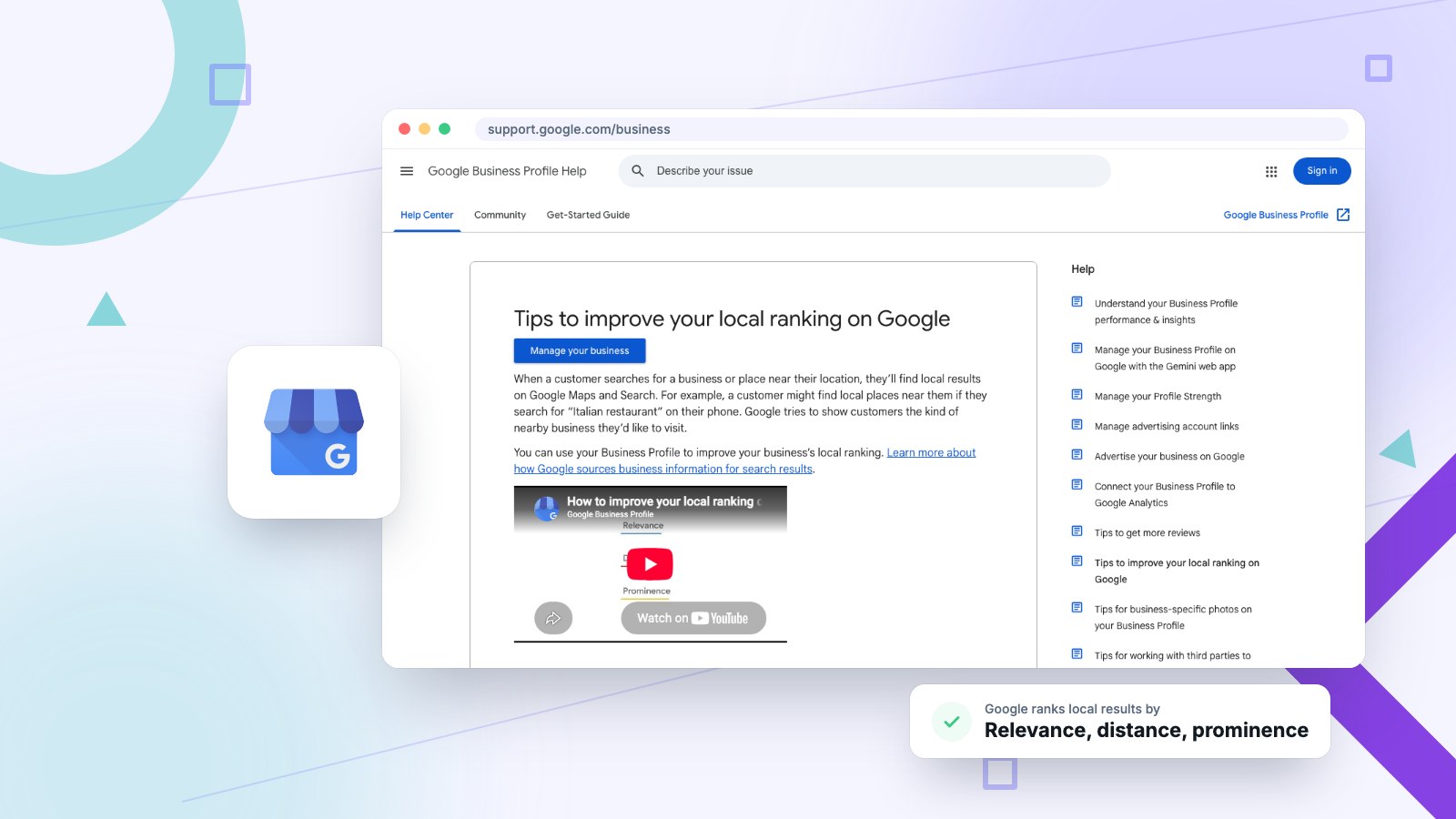
Google is unusually direct about what helps. Its page on improving your local ranking says “businesses with complete and accurate info are more likely to show up in local search results,” and that there’s “no way to request or pay for a better local ranking on Google.” Optimization is the only lever, and most of it is free.

How does Google rank Business Profiles in local search?
Google ranks local results on three factors: relevance to the search, distance from the searcher, and prominence, meaning how well known and well reviewed the business is.
| Factor | What Google says it means | What you can do about it |
|---|---|---|
| Relevance | How well a Business Profile matches what someone is searching for. | Pick the right categories, fill in services, write a clear description, keep every field complete. |
| Distance | How far each business is from the person searching. | Little. Set an accurate address or service area and don’t fake locations. |
| Prominence | How well known a business is, including how many websites link to it and how many reviews it has. | Earn reviews, reply to them, build local links and citations, keep the profile active. |
One detail worth knowing: Google’s summary on that page calls the third factor “popularity,” while the section below it is titled “Prominence.” Either way, it’s the reputation factor, and Google spells out what moves it: “More reviews and positive ratings can help your business’s local ranking.” Distance is the one you can’t change, which is why everything else in this guide focuses on relevance and prominence.
How do you set up a Google Business Profile?
Sign in at business.google.com, claim or add your business, choose a category, add your location or service area and contact details, then verify.
Step 1: Sign in to Business Profile Manager
Go to business.google.com with a Google account you’ll keep for years. A shared business account is better than an employee’s personal Gmail, because whoever owns the account owns the listing.
Step 2: Find or add your business
Type your exact business name. Google often has a listing already, built from public data. If yours shows up, claim it rather than creating a second one. Google’s guidelines are blunt that there should be one profile per business location.
Step 3: Choose your primary category
Pick the most specific category that describes your main business. “Web designer” beats “Marketing agency.” “Italian restaurant” beats “Restaurant.” Google lets you add up to 9 more categories, but its guidelines say to choose the fewest it takes to describe your core business.
Step 4: Add your location or service area
If customers come to you, add your full street address. If you go to them (plumbers, landscapers, mobile services), set a service area. Google says a service-area business should hide its address from customers, for example a plumber working from home.
Step 5: Add your phone number and website
Use the number customers actually call, and the same one that’s on your website. Link to the most relevant page, usually your homepage, or the location page if you have several offices.
Step 6: Verify your business
Verification proves you own or manage the business, and you can’t fully manage the profile until it’s done. Depending on your business, Google offers phone or text, email, a recorded video, a live video call, or a postcard by mail, and it decides which options you see. Don’t edit your name, address or category while you wait. For every method step by step, plus what to do when it fails, see our Google Business Profile verification guide.
How do you optimize your Google Business Profile? 13 steps that still work
Complete every field, choose precise categories, list your services, add real photos, keep hours current, post updates, and earn and answer reviews every month.
Having a profile is the starting line. Here’s how to optimize Google Business Profile listings so they work for you, in roughly the order we’d tackle it.
1. Complete every field
Hours, description, attributes, services, photos, opening date, website, phone. Google’s relevance factor rewards “complete and detailed business info,” so blank fields are lost ground. The dashboard shows a profile strength meter that points out what’s missing.
2. Choose the right categories
Your primary category tells Google what you are. A dental practice is “Dentist,” not “Health.” A Raleigh web design agency is “Web designer” or “Website designer,” not “Marketing consultant.” Add secondary categories only for real lines of business, like “Caterer” for a restaurant that caters. Checking what the top businesses in your map results use is a useful sanity check.
3. Write a description that says what you do and where
You get 750 characters. Use them to say what you do, who you serve and which areas you cover, in plain words a customer would use. Google’s guidelines say “no links of any type are allowed” in the description, so leave out URLs.
Example: “Snazzy Solutions is a web design agency serving the Raleigh-Durham Triangle. We build fast, SEO-friendly websites for small businesses in Raleigh, Durham, Cary, Apex and Chapel Hill, and handle redesigns, local SEO and ongoing website maintenance.”
4. List your services (or products, if you’re retail)
Add every service you offer with a short description, and prices where it makes sense. Google’s services editor keeps them current. Restaurants get a menu editor. Product listings now work differently than a few years ago: Google limits in-store products to retail businesses in eligible countries that connect their point-of-sale system to its Local Inventory app.
5. Add real photos and videos, and keep adding them
Google lists photos and videos among its tips to improve local ranking, saying they let you “tell the story of your business.” Upload a logo and cover photo, then the outside of your building (so people can find the door), the inside, your team, and your work. Real photos beat stock images, and a steady trickle of new ones keeps the profile looking alive.
6. Keep hours accurate, including special hours
Wrong hours cost you twice: the customer who drives over to a locked door, and the one-star review they leave. Set regular hours, then use special hours for holidays and temporary closures, and “more hours” if things like a drive-through or pickup run on a different schedule.
7. Add a booking link if you take appointments
If customers book with you, add your scheduling page through the links section of your profile so a “Book” button appears. Link straight to the booking page, not your homepage. If the option doesn’t appear, Google doesn’t offer it for your category.
8. Add attributes
Attributes are tags like “wheelchair accessible,” “outdoor seating” or “women-owned.” Google lets you edit the factual ones yourself; others come from customer feedback. They help when people filter results, so set every one that’s true.
9. Post updates, offers and events
Google now offers three post types: Update, Offer and Event. Posts are your free announcement board on Search and Maps. A weekly or every-other-week rhythm is plenty for most small businesses. Use a real photo and a button (Learn more, Call, Book) on each one.
10. Answer the questions customers ask
The public Q&A section is going away. In December 2025, Google said it would replace browsable Q&A on Maps with an AI “Ask” button that answers from your profile, your own past answers and your reviews, as PPC Land reported. Owners can still answer questions in the dashboard. In practice, the best way to control those AI answers is a profile and a website that state the facts clearly: services, prices, areas, parking, policies.
11. Keep your name, address and phone identical everywhere
NAP stands for name, address and phone number. They should match exactly on your website, your profile, Yelp, Facebook, the BBB and industry directories. “Suite 100” on one and “#100” on another isn’t a disaster, but a different phone number or old address splits your signals and confuses customers. Audit your listings once or twice a year.
12. Reply to every review
“Respond to reviews” is one of Google’s own local ranking tips, which says replies show “you value their feedback” and help your business stand out. Thank positive reviewers and mention something specific. For a negative review, acknowledge it, skip the argument, and offer to fix it offline. Future customers read the replies as closely as the reviews.
13. Connect your website to your profile
Your website and profile should back each other up. Put the same NAP on the site, embed a map, and add LocalBusiness structured data so search engines can tie the two together. If you have several locations, give each one its own page, and consider a custom Google map of your locations so visitors find the nearest one without leaving your site.
What has Google removed from Business Profiles?
Chat and call history ended in July 2024, short names can no longer be created, and public Q&A is being replaced by an AI Ask button.
A lot of Google Business Profile optimization advice online still tells you to turn on messaging or set a custom short URL. Those steps are dead ends now.
| Feature | What changed | Do this instead |
|---|---|---|
| Chat / messaging | Google shut down Business Profile chat; it was removed from profiles on July 31, 2024, per 9to5Google. | Make your phone number, website and booking link easy to use. |
| Short names (g.page/yourname) | Google’s help page says “You can no longer create or edit short names.” Existing ones still work but aren’t shown on profiles. | Use Google’s review link or QR code (below). |
| Public Q&A | Being replaced by an AI “Ask” button on Maps, announced December 2025. | Answer questions in the dashboard and keep your profile and website factual. |
| Posts expiring after 7 days | Old advice. Google now says posts older than 6 months are archived unless a date range is set. | Post on a steady schedule; no need to repost weekly just to stay visible. |
Sources: Google’s help pages on short names and posts, checked October 2026.
How do you get more Google reviews?
Ask every happy customer right after the job, using Google’s own review link or QR code. Never offer incentives or ask only the customers you expect to be happy.
Reviews feed the prominence factor directly, and Google says so: “More reviews and positive ratings can help your business’s local ranking.” They’re also the first thing people compare between you and the business listed next to you.

Get your review link or QR code
Google’s review link instructions: go to your Business Profile, select Read reviews, then Get more reviews, and copy the link or save the QR code (QR codes only generate in a computer browser). Google suggests putting it on receipts, in thank-you emails, at the end of a chat, or printed at your counter.
How to ask without being annoying
- Ask when the customer is happiest, right after a finished job, delivery or appointment.
- Send the direct link so it’s one tap, not a search.
- Be specific: “Would you mind leaving a quick review about the new website?”
- Follow up once if they haven’t, then let it go.
- Make it a standard step in your process so it happens every time, not when you remember.
What not to do
Google’s review policy prohibits offering “incentives, such as payment, discounts, free goods and/or services” in exchange for reviews, and businesses may not “discourage or prohibit negative reviews, or selectively solicit positive reviews from customers.” So no “10% off for a review,” no buying reviews, and no asking “did you have a good experience?” first and only sending happy customers to Google. Reviews that break these rules can be removed.
What should you post on Google Business Profile?
Post news, offers and events that a local customer would care about, each with a real photo and a button that tells them what to do next.
| Post type | Best for | Example |
|---|---|---|
| Update | News, tips, new work, new blog posts | “New project: see the before and after of our latest website redesign.” |
| Offer | Promotions and deals with a date range | “Free website check-up for Raleigh businesses booked this month.” |
| Event | Workshops, open houses, webinars | “Free workshop Thursday: five website fixes that bring in more calls.” |
Most local businesses never post, so a consistent schedule already puts you ahead. Keep the wording natural and mention the service and the town, since that’s how people search.
How do you know if your optimization is working?
Check the Performance report in your profile monthly. Watch calls, website clicks, direction requests and the searches people used to find you.
Google’s performance insights count actions: clicks on your call button, clicks on your website link, and direction requests, plus profile views (repeat visits on the same day aren’t counted). Compare month over month rather than day to day. If views rise but calls don’t, the profile is being seen but not chosen, which usually points to photos, reviews or the description. For your actual position in the map, search your main service plus your town from a few locations, or use a local rank tracker.
How much does Google Business Profile optimization cost?
The profile is free, and Google says you can’t pay for better local ranking. The cost is your time, or what you pay someone to manage it.
Everything in this guide can be done yourself for nothing. Setting a profile up properly takes a few hours, and keeping it current takes a little time each month for posts, photos and review replies. If you hire help, compare what’s actually included (review replies, posts, photo updates, reporting) rather than the price alone, and be wary of anyone promising a guaranteed Map Pack position, since Google itself says rankings can’t be bought.
For a real reference point, here is what we charge. Our Basic Management plan is $50 per location per month: we secure ownership of the profile, optimize categories, services and the description, monitor hours and contact details, alert you to new reviews, and catch and revert unwanted “suggested edits.” Growth Management is $450 per location per month and adds 8 posts per location each month, written replies to every review, monthly photo and video uploads, answers to customer questions, geo-grid rank tracking with competitor monitoring, review generation support and a monthly report. Either plan starts with a one-time setup of $50 per location, which covers the audit, claiming the profile and the full optimization.
Common Google Business Profile mistakes
1. Stuffing keywords into your business name
Use your real name, exactly as it appears on your sign and paperwork. Google’s guidelines say “including unnecessary information in your business name isn’t permitted,” and names like “Best Plumber Raleigh NC – Joe’s Plumbing” are a common reason for suspensions. If yours has dropped off the map, our guide to why a business is not showing up on Google Maps walks through every cause and fix.
2. Using a virtual office or mailbox address
Google’s guidelines say P.O. boxes and remote mailboxes “aren’t acceptable,” and a rented mailing address you don’t operate from “isn’t eligible for a Business Profile.” If you don’t have a storefront, set up as a service-area business instead.
3. Choosing a vague category
“Consultant” when you’re really a “Web designer” means you won’t appear for web design searches. Choose the most specific option Google offers.
4. Ignoring negative reviews
An unanswered complaint is the loudest thing on your profile. Reply calmly, even to unfair reviews. People judge you by how you handle criticism more than by the criticism.
5. Letting information drift
If the profile says you close at 6 and your website says 5, customers don’t know which to trust. Update hours, phone numbers and services everywhere at once.
6. Setting it and forgetting it
Google Business Profile management is ongoing: reviews to answer, posts to publish, holiday hours to set, photos to add. The businesses that hold the top of the map treat their profile like a marketing channel, not a directory listing they filled out once.
Google Business Profile optimization checklist
Verify the profile, complete every field, set precise categories, add services and photos, post regularly, and request and reply to reviews every month.
- One time: verified profile; exact business name; most specific primary category plus only relevant secondaries; address or service area; phone and website; 750-character description with no links; services or menu; attributes; logo, cover and at least a handful of real photos; booking link if you take appointments; the same NAP on your website.
- Monthly: reply to every new review; send your review link to recent customers; add new photos; publish a few posts; check the Performance report.
- Before holidays: set special hours.
- Once or twice a year: audit your directory listings for matching name, address and phone; re-check categories against your top map competitors.
How Google Business Profile fits into local SEO
Your profile drives the map results. Your website drives the regular results under them. Local SEO is both working together:
- Business Profile: categories, reviews, posts and photos (this guide).
- On-page SEO: page titles, headings and content that name your services and towns.
- Citations: consistent listings on Yelp, the BBB and industry directories.
- Links: other websites linking to yours, especially local ones. Google names links as part of prominence.
- Website quality: speed, mobile layout, and clear calls to action.
Frequently asked questions
Is Google Business Profile really free?
Yes. Creating, verifying and managing a Business Profile costs nothing, and Google says there is no way to pay for a better local ranking. Google Ads can place you above the map, but that is advertising, not your profile.
How long does it take to see results from Google Business Profile optimization?
Fixes like completing the profile and adding photos can show up in your Performance report within a few weeks. Moving up in competitive map results usually takes months of steady reviews, posts and updates.
Can I have more than one Google Business Profile?
One per real location. Offices in Raleigh and Durham can each have a profile, but Google’s guidelines forbid creating more than one profile for the same location, for example to target different services.
What if someone leaves a fake review?
Report it to Google from your profile and reply calmly that you have no record of the person as a customer. Google does not remove every reported review, but a measured reply tells future readers what happened.
Can I use a virtual office address?
No. Google’s guidelines say P.O. boxes and remote mailboxes are not acceptable, and a rented address you do not operate from is not eligible. Set up as a service-area business and hide your address instead.
How often should I post on Google Business Profile?
Weekly or every other week is plenty for most small businesses. Posts no longer expire after seven days; Google archives posts older than six months unless they have a date range, so consistency matters more than volume.
Can I still turn on messaging or create a short name?
No. Google removed Business Profile chat on July 31, 2024, and you can no longer create or edit short names. Use your phone number, website and booking link for contact, and Google’s review link or QR code for reviews.
Does Google Business Profile help my website’s SEO?
Indirectly. Map rankings and regular rankings are separate, but they reinforce each other: the profile sends visitors to your site, and a site with local content and links strengthens your prominence in the map.
Need help with Google Business Profile optimization?
Keeping a profile current, collecting reviews, posting and watching the numbers takes time most business owners don’t have. At Snazzy Solutions, we help small businesses across the Raleigh-Durham Triangle get found on Google, with the profile and the website working together. Profile management starts at $50 per location per month, or $450 per location per month for our Growth plan with posts, review replies and rank tracking, plus a one-time $50 per location setup.
Ready to show up when your customers search?
- Schedule a free consultation
- Call us: (980) 829-2172
- Email: jacob@snazzy.solutions
We’ll look at your current Business Profile, show you where you’re losing visibility, and tell you what to fix first, no commitment required.