

Google Business Profile verification is how you prove to Google that you own or manage a business. Until it’s done, you can’t edit your listing, reply to reviews, or count on showing up properly in Search and Maps. The process is free, but Google picks which verification methods you get, and a small mistake (like editing your address while a postcard is in the mail) can send you back to the start.
This guide walks through every method Google offers, how long each one takes, what to film for video verification, why verification fails, and what to do if your profile gets suspended. We help our clients set up and manage their Google Business Profiles, so this is the version we’d hand a business owner. Every rule below links to Google’s own Business Profile Help pages, checked in October 2026.
What is Google Business Profile verification?
It’s Google’s check that you really own or manage the business. Once you pass, you control the profile’s details, reviews, photos and posts on Search and Maps.
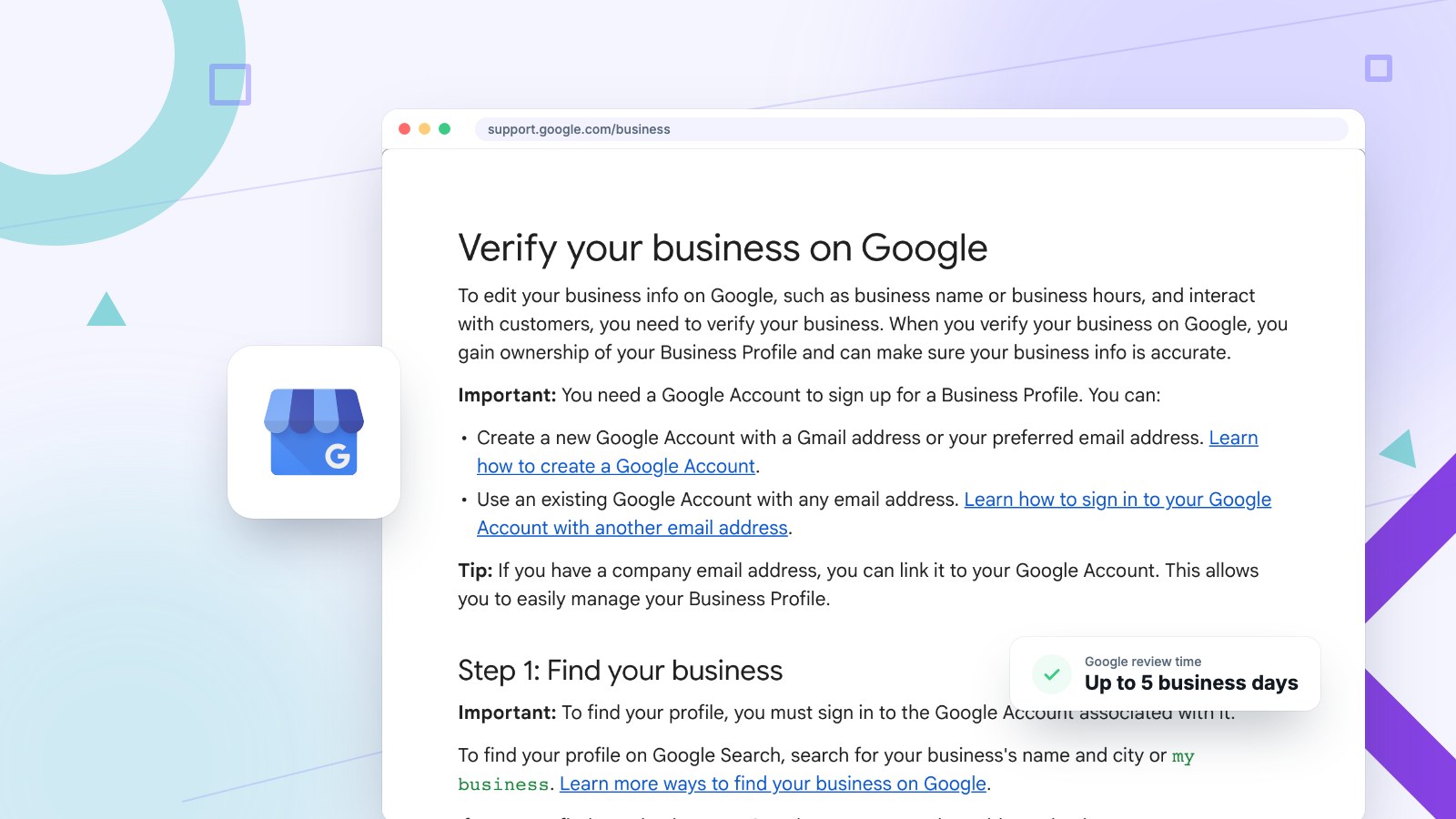
Anyone can create or suggest a business listing on Google. Verification is the step that gives you ownership of it. In Google’s words, when you verify your business on Google, you gain ownership of your Business Profile and can make sure your business info is accurate. Without it, you can’t edit your hours, respond to customers, or manage what people see.
It also affects whether you show up at all. Google’s own help center says only verified businesses can show their business info on Maps and Search, which is why an unverified listing is the first thing we check when a business owner tells us their business isn’t showing up on Google Maps.
How do I verify my Google Business Profile?
Sign in, find or add your business, choose one of the verification methods Google offers you, complete it, then wait up to five business days for Google’s review.
Here’s the full process, following Google’s official verification steps:
- Sign in to the right Google Account. You need a Google Account to own a Business Profile. It can be a Gmail address or your company email. Use an account the business controls, not a personal one an employee might take with them. If your company email runs on Google Workspace and its admin console keeps looping you back to sign-in, here is the fix.
- Find your business. Search Google for your business name and city, or search “my business.” If the listing exists but nobody has claimed it, open it in Google Maps and select “Claim this business,” then “Manage now.” If it doesn’t exist, add it at business.google.com/add.
- Choose a verification method. Under “Get verified,” Google shows the methods available for your business. You can’t add or swap methods yourself.
- Complete the method. Enter the code from your phone, text, email or postcard, record your video, or join the live video call.
- Wait for the review. Google checks your information, which can take up to five business days. You’ll get a confirmation email when you’re verified.
What are the Google Business Profile verification methods?
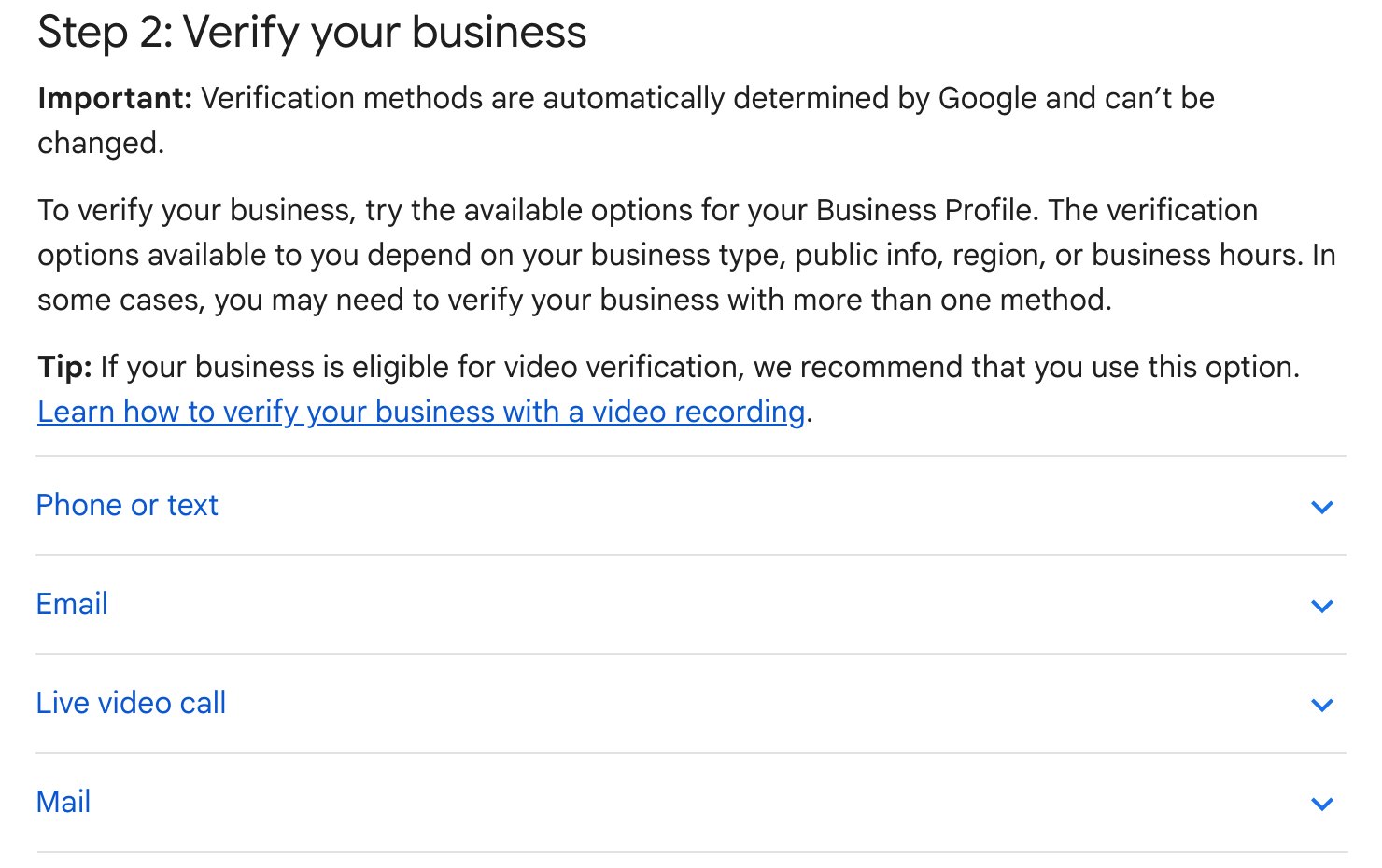
Google offers phone or text, email, video recording, live video call and postcard by mail. Chains with ten or more locations can also use bulk verification.
According to Google, the options you see depend on your business type, public info, region, or business hours, and some businesses have to complete more than one. Here’s how each method works:
| Method | How it works | What you need |
|---|---|---|
| Phone or text | Google calls or texts a code, and you enter it on your profile. | Access to the business phone. Automated phone menus (IVR) can’t receive the code. |
| Google emails a verification link or steps. | Access to the email address shown on the verification screen. | |
| Video recording | You record one continuous video at the business from your phone and upload it. | At least 30 seconds of live, unedited footage showing location, business and proof you manage it. |
| Live video call | A Google representative verifies you over a video call. | A camera-ready device, being at the business during its listed hours. |
| Postcard by mail | Google mails a 5-digit code to your address. | A correct mailing address. Most codes arrive within 14 days and expire after 30. |
| Bulk verification | One request verifies every eligible location in the account. | 10 or more locations of the same business. Not for service-area businesses or multi-client agency accounts. |
For phone verification, the number has to reach a person or a phone that can read texts, not a “press 1 for sales” menu. For the postcard, Google warns you not to edit your business name, address, or category while you wait, and not to request a new code, because both make the code in the mail invalid. And never share the code with anyone. Google says it will never ask you for it, even if someone else helps manage your profile.
Bulk verification has its own rules. Per Google’s bulk verification page, you need 10 or more profiles for the same business, service-area businesses aren’t eligible, and agencies that hold more than one business in one account can’t use it.
How do I verify my Google Business Profile with a video?
Record one unedited, continuous video of at least 30 seconds on your phone that shows where you are, that the business exists, and that you manage it.
Google recommends video verification when you’re eligible for it. It’s also the method where one missing detail gets the whole video rejected. Google’s video recording guide asks for three things, and what counts depends on your business type.
If you have a storefront or office
- Location: street signs, building numbers, nearby businesses or landmarks, so the footage matches Google Maps.
- The business exists: your storefront and signage. The business name has to be printed on something permanent, like a sign, wall or window, and match the name on your profile.
- You manage it: something only staff can do, like opening the register, walking into the kitchen or storage room, or using your point-of-sale system.
If you’re a service-area business
- Location: street signs or landmarks near your business address. Home-based businesses can film the immediate neighborhood.
- The business exists: your tools, equipment, products, branded apparel, business cards or work vehicle.
- You manage it: you doing the work, unlocking a branded van, or a business permit, invoice or utility bill that matches your profile name.
Keep bank, tax and ID numbers, private information and other people’s faces out of the shot. Plan your route before you hit record, since you can’t pause and stitch clips together. If Google rejects the video, a “Review issues” button tells you why (common reasons are a business name that isn’t visible, no surrounding area shown, or no proof you’re authorized to run the business). Your new video has to include everything from the first one plus whatever was missing.
If your business has no permanent signage at its address, Google says to list it as a service-area business instead of a storefront. A business name that isn’t visible on the storefront is one of the rejection reasons Google lists by name.
How long does Google business verification take?
Google’s review takes up to five business days after you finish a method. Postcards usually arrive within 14 days, and verification can be instant in some cases.
The clock depends on the method. Phone, text and email codes arrive right away, then Google reviews the profile, which can take up to 5 business days (Google notes that rare cases take longer). Video reviews also take up to five business days. The postcard is the slow one: most codes arrive within 14 days and expire 30 days after they’re sent.
Verification can be instant if you’ve already verified your website in Google Search Console with the same account, or if you qualify for bulk verification.
How much does it cost to verify your business on Google?
Nothing. Adding, claiming and verifying a Google Business Profile is free, and Google never charges for a verification code.
Google’s help center states that adding or claiming a profile is free. That matters because a lot of cold calls and emails to small businesses claim your “Google listing will be removed” unless you pay to verify it. If someone asks for money or for your verification code, hang up. You can do every step in this guide yourself at no cost, and if you’d rather hand it off, pay a company you chose, not one that called you.
Why can’t I verify my Google Business Profile?
Usually the business isn’t eligible, the details don’t match what Google can confirm, the video missed something, or someone else already owns the profile.
These are the most common causes, and what to do about each:
- The business isn’t eligible. Google requires that a business makes in-person contact with customers during its stated hours. Online-only businesses, rental properties, lead-generation companies and addresses that are a P.O. box or remote mailbox don’t qualify.
- You edited the profile mid-process. Changing the name, address or category while a postcard is on its way invalidates the code. Requesting a second postcard cancels the first one.
- The phone can’t take the code. If calls go to an automated menu, the code never reaches you. Use the text option or have the call forwarded to a person.
- The video was rejected. Check “Review issues” on your profile, fix exactly what Google lists, and record again with everything from the first video included.
- Your name doesn’t match your signage. Adding keywords or a city to your business name (“Smith Plumbing Raleigh Best Plumber”) breaks the match with your real sign and your documents, and it can get the profile suspended later.
- The “Get verified” button came back. Google says this means it couldn’t fully verify your business. Try again, or use another method if Google offers more than one.
What if someone else already verified my business?
Request ownership through Google. The current owner gets three days to respond, and if they don’t, you may be able to verify the profile yourself.
This usually comes up when a former employee, an old marketing company or a previous owner set up the listing. Per Google’s ownership request steps, go to business.google.com/add, enter your business name and address, select your business, and choose “Request Access” when you see “Someone else may manage this Business Profile.” Google emails the current owner, who has three days to reply. If they approve, you’re in. If they don’t answer, the confirmation email may give you a “Verify” option to claim it yourself. Service-area businesses use Google’s contact form instead and choose “Transfer ownership of listing.”
Don’t create a second profile to get around it. Google has a separate page for resolving duplicate profiles and ownership issues.
Why does Google keep asking me to verify my business again?
Google usually asks for re-verification after you change important details like your name, address or category, or when it couldn’t finish verifying you.
Google’s help pages note that changes to your business info may require re-verification, and that a request for more information usually follows recent edits to your business details. Moving to a new address is the classic trigger. Google can also take verification away if an account stops actively managing its profiles, or if the owner hasn’t signed in recently.
The fix is to keep edits deliberate. Make big changes (new address, new name after a rebrand) all at once, when you’re ready to re-verify, rather than tweaking them a little at a time. And have someone sign in and keep the profile current so Google can see it’s actively managed. Our Google Business Profile optimization guide covers what to keep up to date once you’re in.
What does it mean when a Google Business Profile is suspended?
A suspended Google Business Profile has been pulled for not meeting Google’s guidelines. Customers can’t open it, and you can’t edit it until an appeal succeeds.
Google explains that it may suspend or disable Business Profiles that don’t follow its guidelines. When a profile is suspended, the public can’t open it and owners and managers can’t make changes. If the owner’s whole Google Account gets restricted, every location that account owns is removed until the account is reinstated.
To get a suspended Google Business Profile back:
- Fix the cause first. Read Google’s guidelines for representing your business and correct anything that breaks them, like a keyword-stuffed name or a virtual office address.
- Gather evidence. Google accepts documents like your business registration, business license, tax certificate or a utility bill. The name and address on each one should match the profile.
- Appeal once, carefully. Use Google’s Business Profile appeals tool. Google says each appeal can only be submitted once, so include your evidence and a short, clear explanation the first time.
- Wait for the email. Google emails its decision. If the appeal is denied, you can ask for an additional review with new evidence.
Don’t make a new profile for the same business while the old one is suspended. Google’s suspension help page tells owners directly not to.
Can an agency verify my Google Business Profile for me?
An authorized representative can help, but only with the owner’s consent and involvement. The safest setup keeps you as owner and adds the agency as a manager.
Google’s ownership rules for authorized representatives are strict. An agency must never claim a profile without the owner’s express consent, has to work directly with the owner to complete verification, must keep the owner informed, and has to hand ownership back immediately if asked. Breaking those rules can get the profile or the Google Account suspended.
That’s the setup we recommend to every client. The business owns the profile on its own Google Account, and once it’s verified, the owner adds us as a manager. If you ever change agencies, you remove the manager and nothing is lost. If a company you used in the past owns your listing and won’t give it back, the ownership request process above is your way out.
What should you do after your Google Business Profile is verified?
Fill in every field, pick the right categories, add real photos, ask happy customers for reviews, and add trusted people as managers so you’re never locked out.
Verification gets you in the door. Ranking in the map results is a separate job. Start with the basics: a specific primary category, accurate hours, a description written for customers, services, photos of your actual work and location, and a steady flow of reviews you respond to. Our complete Google Business Profile optimization guide goes through all of it step by step.
Also link the profile to a real website. Your Business Profile sends people to your site to call, book or buy, and a slow or outdated site wastes that traffic. If you don’t have one you’re proud of yet, see what a new website from us looks like.
Google Business Profile verification FAQ
Can I choose which verification method Google gives me?
No. Google decides which methods you see based on your business type, public information, region and hours, and you can’t change them. If one method fails, try again or use another one if Google offers it.
How do I contact Google support about verification?
Go to the Google Business Profile Help center at support.google.com/business and use its contact option, or post in the Business Profile community forum. Google says it will never ask you for your verification code.
Can a home-based business get verified?
Yes, as a service-area business, as long as you meet customers in person. Don’t add your home address to the profile if you don’t serve customers there, and for video verification film the nearby street signs plus your tools or work vehicle.
What happens if my verification postcard never arrives?
Most postcard codes arrive within 14 days and expire after 30. Don’t request a new one early, since that cancels the first code. If it never shows up, check your mailing address is correct, then request another code or try a different method.
Can I delete my verification video?
Yes. Go to Business Profile settings, then Advanced settings, then Video uploads, and delete it. If you don’t, Google deletes it later on its own.
Does verifying my profile help me rank on Google Maps?
Verification lets your full business info show on Maps and Search and lets you manage the profile. Ranking higher still depends on relevance, distance and prominence, which means categories, reviews, photos and a good website.
The short version
Google Business Profile verification is free and proves you own your listing. Sign in with an account the business controls, find or add your business, use whichever method Google offers (phone, text, email, video, live call or postcard), and expect up to five business days for review. Don’t edit your name, address or category mid-process, keep your business name exactly as it appears on your sign, and never share your code. If someone else owns the profile, request ownership instead of making a duplicate.
Stuck on verification, dealing with a suspension, or just want your profile and website working together? Tell us what’s going on and we’ll tell you the fastest way to fix it.