

Updating PHP is one of those chores nobody thinks about until something goes wrong. Your WordPress site runs on PHP the way your car runs on an engine you have never looked at. It starts every morning, so you assume it’s fine. Then a mechanic asks when you last changed the oil, and the honest answer is “what oil?”
This guide shows you how to update PHP in WordPress at the hosts most small businesses use, how to check which version you’re on right now, what to do first, and how to undo it if something breaks. It also covers the free plugin that tells you, in about two minutes, whether your web host deserves a thank-you note or a polite exit interview.
The short version:
- Check your PHP version in Tools, then Site Health, then Info, then Server.
- Back up your site, files and database both.
- Update WordPress, your theme and your plugins.
- Change the PHP version in your hosting control panel.
- Click around your site and submit a form.
- If anything breaks, switch back to the old version and find the plugin responsible.
What PHP version should WordPress be on?
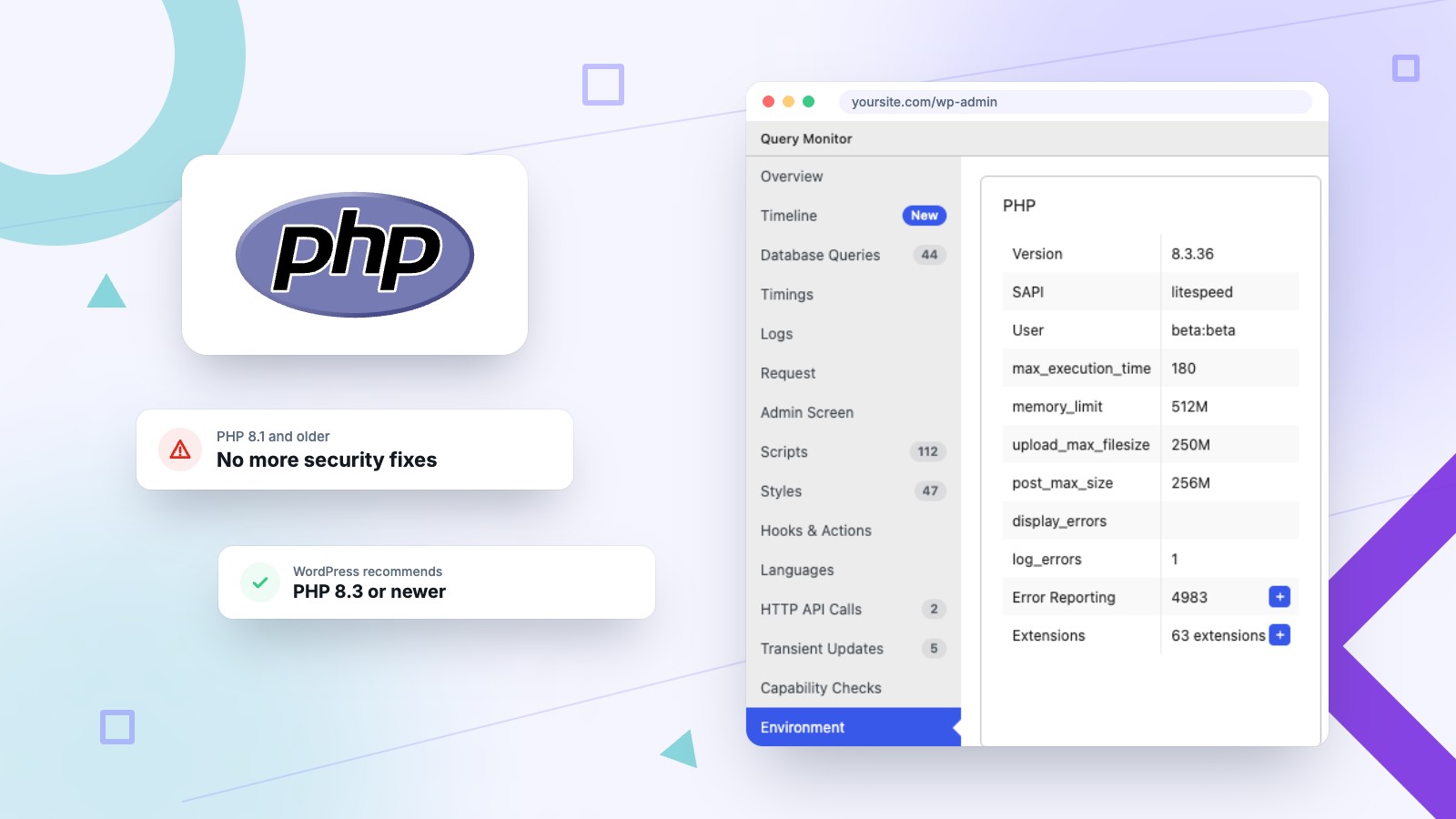
WordPress recommends PHP 8.3 or newer. PHP 8.2 still gets security fixes until December 31, 2026, and PHP 8.1 and older get none at all.
The recommendation comes straight from WordPress’s own requirements page, and the dates come from PHP’s supported versions list and its end-of-life list. Here’s where every version you’re likely to run into stands as of October 2026:
| PHP version | Status | What that means for you |
|---|---|---|
| 8.5 | Active support, security fixes until Dec 31, 2029 | The new kid. Great choice once your plugins are ready for it. |
| 8.4 | Active support until Dec 31, 2026, security fixes until Dec 31, 2028 | Current and boring, which is exactly what you want from a server. |
| 8.3 | Security fixes only, until Dec 31, 2027 | WordPress’s recommended minimum. A safe place to land. |
| 8.2 | Security fixes only, until Dec 31, 2026 | Fine for about ten more weeks. Start planning the move. |
| 8.1 | End of life since Dec 31, 2025 | No security fixes at all anymore. |
| 8.0 and 7.4 | End of life since Nov 2023 and Nov 2022 | Vintage. Not the fun kind. |
This week PHP patched a critical flaw nicknamed PHP2Shell, and the fix shipped for 8.2 and up only. Sites still on 8.1 or older didn’t get one.
How do I check my WordPress PHP version?
In WordPress, go to Tools, then Site Health, then Info, and open the Server section. Your PHP version is the third line down.
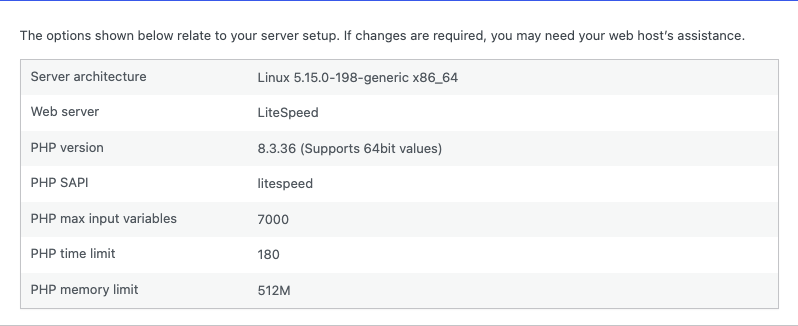
Site Health will also nag you on its Status tab when your PHP is too old. The warning reads “Your site is running an outdated version of PHP, which requires an update,” according to WordPress’s Site Health documentation. If you’ve been dismissing that one for a year, consider this your intervention.
Or check it with Query Monitor
Query Monitor is a free plugin by John Blackbourn with more than 200,000 active installs. It’s built for developers, but you don’t need to be one to use this part. Once it’s active, a little row of numbers shows up in your admin toolbar. Click it, choose Environment, and the PHP box at the top tells you your version, your memory limit and how many PHP extensions your server loads.
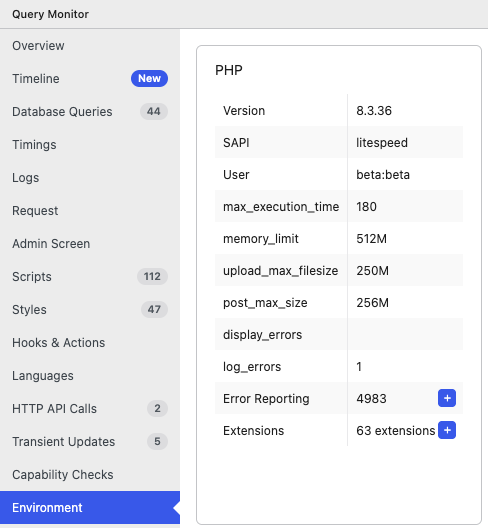
The more useful trick comes before you update. Query Monitor also lists PHP errors and any “deprecated” code running on your site, along with the plugin or theme responsible. Deprecated is PHP’s polite way of saying “this still works, but I wouldn’t get attached.” A plugin that throws a pile of those notices is the one most likely to fall over when you move up a version, so you know who to update (or replace) first.
You don’t have to keep it installed forever. Check what you need, then deactivate it.
When should you fire your web host over PHP?
If your host keeps your site on a PHP version that no longer gets security fixes, and won’t move you or let you switch, it’s time to shop around.
Keeping PHP current is mostly your host’s job. They run the server. You run a business. Query Monitor turns this into a quick report card: check the Environment panel, compare the version to the table above, and grade accordingly.
- 8.3 or newer: Your host is doing its job. Send a fruit basket, or at least skip the angry support ticket this month.
- 8.2: Fine for now, but it loses security support on December 31, 2026. Ask your host what the plan is. A good host already has one and will tell you without being asked twice.
- 8.1 or older: Your site is running on a version that gets no security patches. If your control panel lets you switch, do it today with the steps below. If it doesn’t, and support shrugs, that’s your answer.
A few other red flags worth watching for:
- The newest version on offer is 8.1. Your host is behind the industry, not just behind on your site.
- “We’ll look into it.” Followed by three weeks of nothing.
- Surprise fees for staying old. Some big hosts now bill you automatically for running an unsupported version. GoDaddy’s cPanel hosting adds a paid PHP Extended Support add-on at your next renewal, and DreamHost adds a paid extended support plan 30 days after it spots a site on PHP 8.1 or older. That’s fair as a short bridge, but you should hear about it before the bill shows up, along with an offer to help you move off it.
- Silence after a big security release. When PHP2Shell dropped, every server we host had the fixed builds installed less than four hours after PHP’s release. If your host can’t tell you when your server will be patched, that tells you something too.
Firing a host sounds scarier than it is. A proper move keeps your URLs, your email and your Google rankings intact. We wrote up the checklist we use to move sites without losing rankings, and if you’d rather skip the whole thing, our hosting includes the PHP updates.
What should you do before updating PHP?
Back up the whole site, update WordPress, your theme and plugins, and check for deprecated warnings. Outdated plugins are usually what breaks when PHP changes.
- Back up everything. Files and database. Then make sure you know how to restore it, because a backup you’ve never restored is really just a rumor.
- Update WordPress, your theme and your plugins. Plugin developers ship PHP compatibility fixes in their regular updates, so this alone heads off most problems.
- Look for deprecated warnings. Query Monitor shows them, as covered above. Deal with the noisy plugins first.
- Use staging if your host has it. GoDaddy and WP Engine both recommend testing a PHP change before it hits your live site, and it’s good advice everywhere.
- Pick a quiet time. Not 4:55 on a Friday. Never 4:55 on a Friday.
How to update PHP in WordPress at your host
WordPress can’t change its own PHP version. You switch it in your hosting control panel, and every host hides the setting somewhere different.
Below are the steps from each host’s own help docs, checked October 22, 2026. Hosts redesign their dashboards for fun, so if a menu name doesn’t match, follow the source link.
GoDaddy (cPanel web hosting)
- In your GoDaddy account, open My Products, and under Web Hosting, select Manage beside your cPanel account.
- Open the Settings tab, go to Server Settings, and select Change next to PHP Version.
- Choose a version, select Continue, then Save Changes.
GoDaddy lists 8.2, 8.3 and 8.4 as its supported versions. Older versions trigger the paid extended support add-on mentioned above. Source: GoDaddy help.
GoDaddy (Managed WordPress)
- In My Products, select Manage All beside Managed Hosting for WordPress.
- Open your site’s menu and select Settings.
- Under Production Site, select Change next to PHP version, choose one, and Save Changes.
GoDaddy suggests testing on staging first. Source: GoDaddy help.
Bluehost
- Go to Websites and select Manage Site.
- Open the Advanced tab and select Change Version on the PHP Version tile.
- Choose a version and select Apply.
Prefer cPanel? It’s under Software, then MultiPHP Manager. Bluehost offers up to 8.5 and marks anything below 8.2 as deprecated. Source: Bluehost help.
HostGator
- Go to Websites and select Manage Site.
- Open the Advanced tab and select Change PHP Version.
- Choose a version and select Apply.
The cPanel route is Software, then MultiPHP Manager. If your site was set up with HostGator’s older PHP selector, its help page also says to remove the old AddHandler application/x-httpd-php-edge lines from your .htaccess file. Source: HostGator help.
SiteGround
- Open the Websites tab and select Site Tools.
- Go to Devs, then PHP Manager, and select the pencil icon.
- Choose Managed PHP, or Change PHP Version Manually and pick one, then Confirm.
Managed PHP is on by default, which means SiteGround moves you up on its own once a new version is ready. Picking a version manually turns that off. Source: SiteGround knowledge base.
Hostinger
- Go to Websites and select Dashboard next to your site.
- In the sidebar, open PHP Configuration.
- Choose a version and select Update. It takes a few minutes.
A few things to know: Hostinger offers 8.2 through 8.5, and the change applies to every site on your plan. It also says you can’t downgrade afterward (outside the same login session), so do the prep steps first. Source: Hostinger support.
DreamHost
- Go to Manage Websites and select Manage on your domain.
- Open the Settings tab, find Website Settings, and select Manage next to PHP.
- Choose a version from the PHP Version menu and select Change PHP Version.
It takes under five minutes. Moving off 8.1 or older also removes the paid extended support plan. Source: DreamHost help.
WP Engine
- In the User Portal, go to Sites and select the environment.
- In the Updates section, find PHP and select the version number.
- Choose a version and Confirm.
WP Engine upgrades retired versions automatically and says those upgrades can’t be deferred, so you’ll get emails before it happens. Source: WP Engine support.
Kinsta
- In MyKinsta, open your site and go to Tools.
- Under PHP settings, select Change.
- Choose a version and decide whether to keep Automatic PHP Updates on.
Automatic updates are on by default, and Kinsta moves sites up when their version reaches end of life. Source: Kinsta docs.
Namecheap
- Log in to cPanel and find Select PHP Version (under “Exclusive for Namecheap Customers,” or under Software on some servers).
- Choose a version from the Current PHP version menu.
- Select Apply.
Source: Namecheap knowledge base.
My host isn’t listed
If your host uses cPanel, look under Software for MultiPHP Manager: tick your domain, choose a version, and select Apply. Some hosts show a “Select PHP Version” tool instead, and a few show both. Use whichever one your host’s own help article points to. And if you can’t find a PHP setting anywhere, email support and ask what version you’re on. How fast and how clearly they answer is its own little report card.
What if my site breaks after updating PHP?
Switch back to the previous PHP version in the same control panel. Your site comes back, and you can track down the plugin responsible without the pressure.
The classic symptom is a page that says “There has been a critical error on this website,” or a blank white screen. Don’t panic. Since WordPress 5.2, a fatal error triggers recovery mode: WordPress emails your site’s admin address a special link that lets you log in with the broken plugin or theme paused. From there you can deactivate the culprit, update it, or send the exact error to its developer.
Check that admin inbox (and the spam folder). The email usually names the plugin, which saves you a lot of guessing. Once it’s sorted, switch PHP forward again.
One exception: Hostinger says it doesn’t allow downgrades after the fact, so on Hostinger the recovery mode email is your main tool. Another reason to back up first.
Can someone else just handle PHP updates for me?
Yes. Good hosting and WordPress maintenance include PHP updates, so you never have to open a control panel or decode a version number.
On our servers, PHP is our job. We test sites against new versions, move them up before the old ones lose support, and patch fast when something like PHP2Shell lands. If you want to compare what different providers include, we wrote guides to what a WordPress maintenance plan should cover and the best WordPress maintenance services, ours included.
Not sure where your site stands? Talk to us. We’ll check your PHP version and tell you straight whether your host is doing its job.
Frequently asked questions
Will updating PHP break my WordPress site?
Usually not, as long as WordPress, your theme and your plugins are up to date. Old or abandoned plugins are the usual culprits, and on most hosts you can switch PHP back if something breaks.
Can I update PHP from the WordPress dashboard?
No. WordPress shows your PHP version in Site Health, but the setting itself lives in your hosting control panel. On managed hosting, your host changes it for you.
Is updating PHP the same as updating WordPress?
No. WordPress updates come from the Updates screen in your dashboard. PHP is the programming language WordPress runs on, and it’s updated on the server, by you or your host.
How often should I update PHP?
Security releases within a version, like 8.3.35 to 8.3.36, should go in as soon as they ship, and a good host installs them for you. Move to a newer major version before your current one loses security support.
Does updating PHP make WordPress faster?
Often, yes. WordPress’s own Site Health documentation notes that newer PHP versions are built with performance in mind, so many sites get a little quicker after the update.